Veloso
Getting started
Install Pennerly, switch the connector on and add your site in Claude.
What you need
- WordPress 6.5 or newer and PHP 7.4 or newer.
- A site on a public HTTPS address. Claude only connects to HTTPS sites.
- A Claude plan that can add custom connectors, and a WordPress account that can write posts.
No API keys and no extra services: your site signs Claude in with your normal WordPress login.
Switch the connector on
- Install and activate Pennerly.
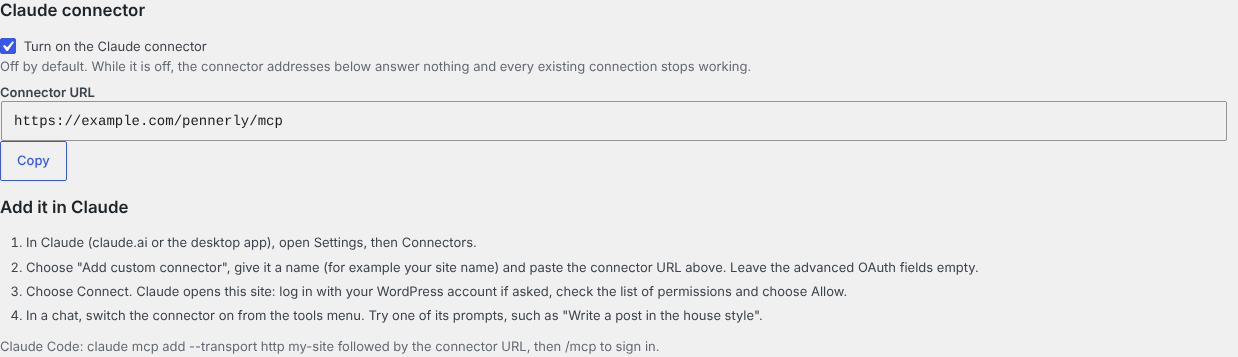
- Open Settings › Pennerly and tick Turn on the Claude connector (off by default; while it is off the connector answers nothing).
- Save. The Connector URL appears, for example
https://example.com/pennerly/mcp. Use Copy.
Add it in Claude
- In Claude (claude.ai or the desktop app), open Settings › Connectors and choose Add custom connector.
- Give it a name, for example your site name, and paste the connector URL. Leave the advanced OAuth fields empty.
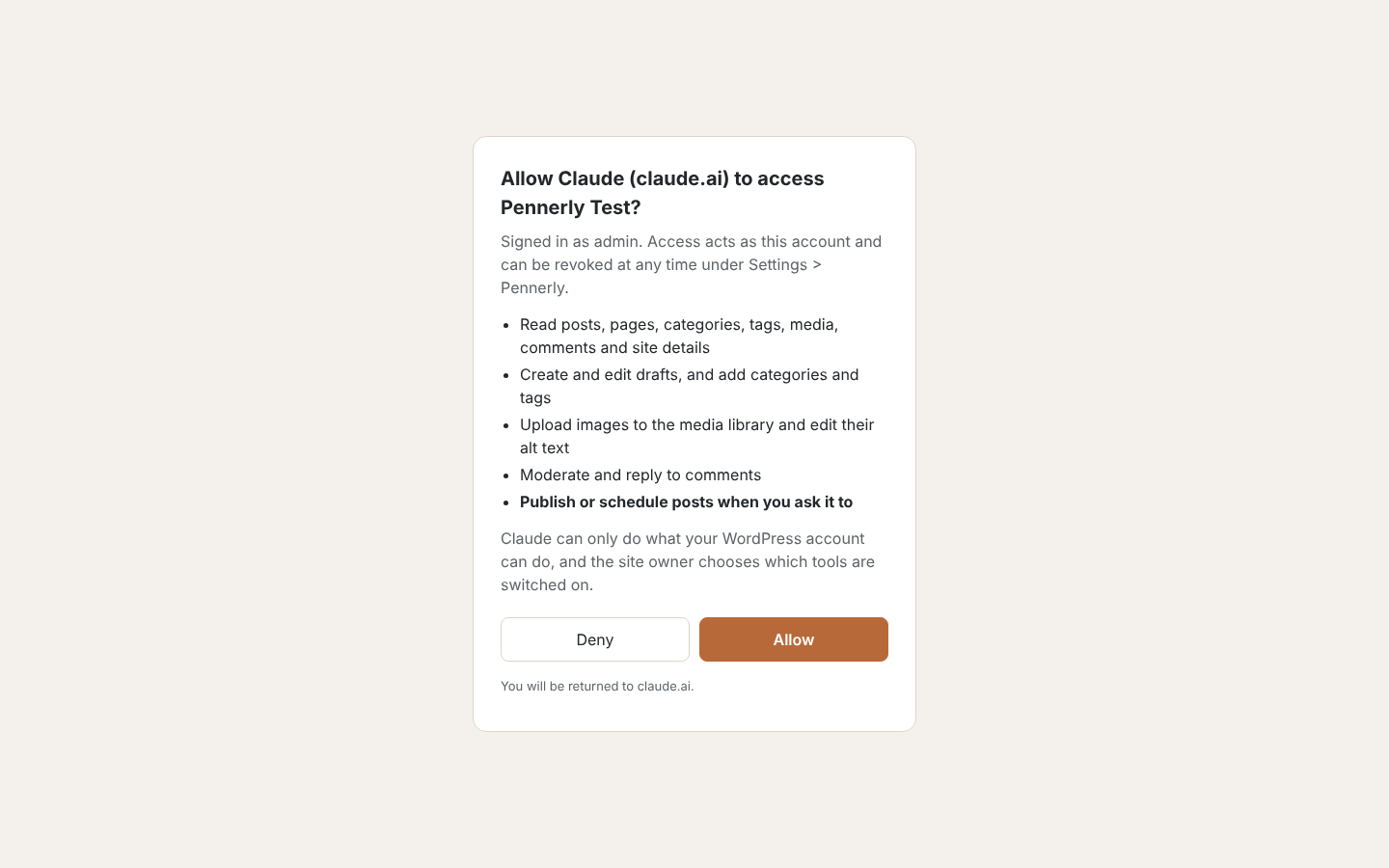
- Choose Connect. Claude opens your site: log in with your WordPress account if asked, read the list of permissions and choose Allow.
- In a chat, switch the connector on from the tools menu and try a prompt such as Write a post in the house style.
Claude Code: claude mcp add --transport http my-site https://example.com/pennerly/mcp, then /mcp to sign in.
House style
Write your voice, spelling, length, headings, words to avoid and alt text rules in House style notes. Claude reads them before it writes.
In the plugin