Veloso
Getting started
Install Bylinely, add an AI key and generate your first post.
What you need
- WordPress 6.0 or newer and PHP 8.0 or newer.
- An API key for Claude (Anthropic) or ChatGPT (OpenAI). You pay the AI provider directly for what you use. Featured images need an OpenAI key.
- An administrator account on the site.
Install
- Download the plugin. Download the latest Bylinely zip. The link always serves the newest release.
- Upload it. In WordPress go to Plugins › Add New Plugin › Upload Plugin, choose the zip and click Install Now.
- Activate. Click Activate Plugin. A new AI Poster menu appears in the admin sidebar, with Generate, Schedule and Settings.
Fresh installs start on the recommended free settings, so there is nothing else to configure before your first post.
Add your AI key
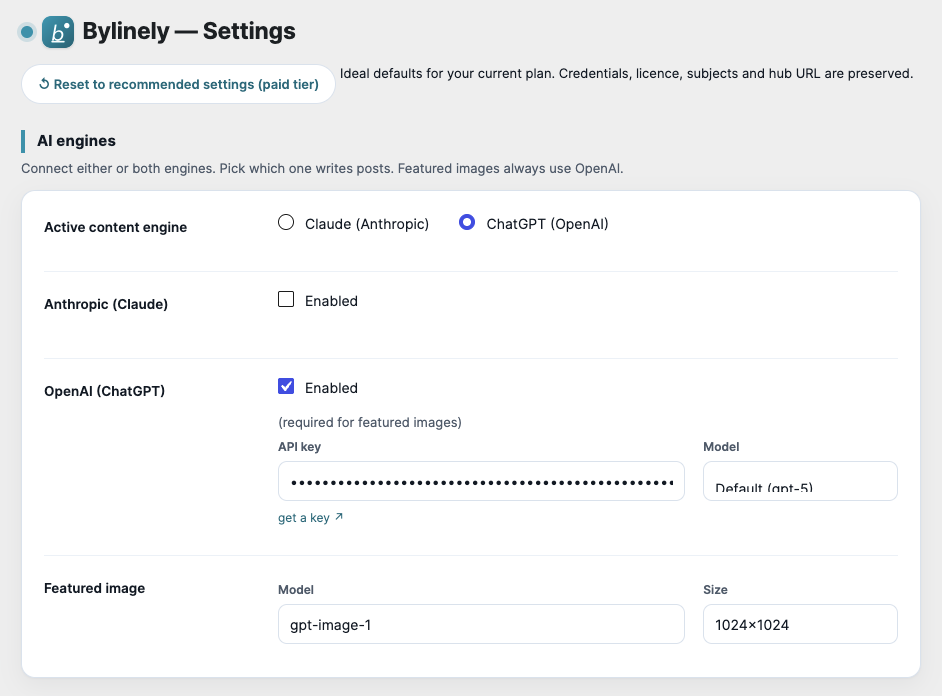
- Open AI Poster › Settings and find AI engines.
- Tick Enabled for Anthropic (Claude), OpenAI (ChatGPT) or both, and paste the API key. Each provider has a get a key link to its console.
- Choose the Active content engine: the one that writes your posts. Leave Model on its default unless you have a reason to change it.
- Click Save Changes.
Generate your first post
- Open AI Poster › Generate.
- Type a Subject, for example Benefits of interoperable freight systems, or pick a saved subject.
- Add Extra instructions if you want a particular angle, must-cover points or a call to action.
- Leave Generate featured image ticked if you added an OpenAI key.
- Choose Save as: Draft, Pending review or Publish now, then click ✨ Generate post. It can take up to a minute.
Next: read Content and style to set your tone, length and categories.
In the plugin