Veloso
Bulk orders and trade enquiries
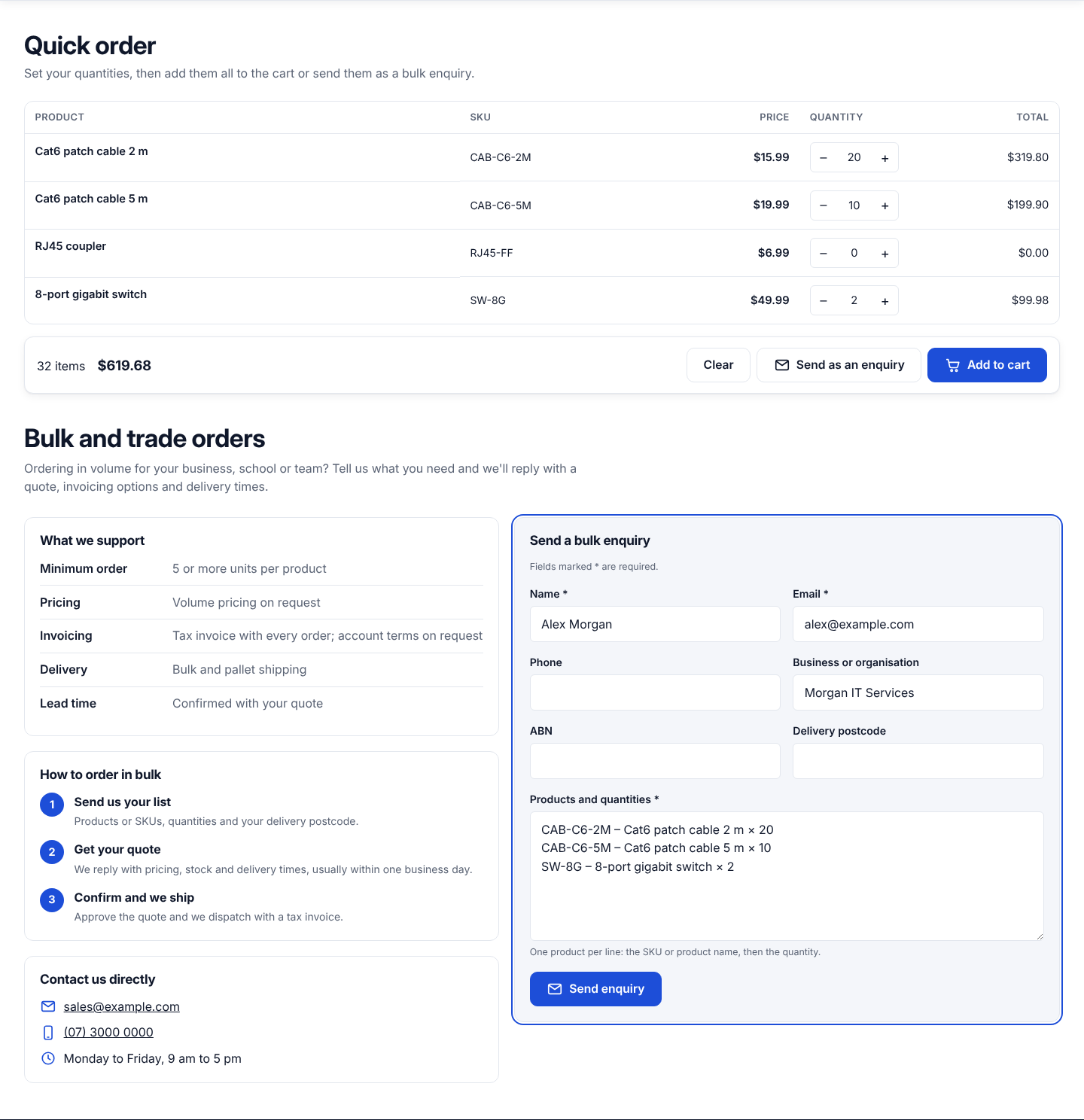
A quick order page that explains how bulk ordering works and takes enquiries, with the shopper's list filled in for them.
From version 1.0.9, the Bulk order enquiry section turns a quick order page into a complete trade page: what you offer for bulk orders, how to order, how to reach you, and a form for quotes. Shoppers who set quantities in a quick order list can send that list as an enquiry instead of retyping it.
Add it
- Pages that use the page.quick-order template include it already, below the quick order list. To use it elsewhere, open a page in the theme editor and choose Add section › Bulk order enquiry.
- It needs nothing else: enquiries use Shopify's own contact form.
What it shows
- Heading and intro: who you sell to in volume and what they get.
- What we support: one Term block per line, a label and the details, for example minimum order, pricing, invoicing, delivery and lead time. The section comes with five examples to edit.
- How to order in bulk: one Step block per step, numbered in order. Three examples are included.
- Contact details: your email and phone number from Settings › Store details. Each shows only when the store has it. Set the section's Email to use another address, such as a sales inbox, and add Business hours if you want them shown. A click on the email opens a message with the subject "Bulk order enquiry".
- Enquiry form: name and email (required), phone, business or organisation, and "Products and quantities" (required). Optional fields: a business number such as ABN or VAT number (type its label in Business number label; blank hides it) and Ask for the delivery postcode (off by default). You can change the button text and the thank-you message.
Send as an enquiry
When a Quick order list is on the same page, its bar shows Send as an enquiry next to Add to cart. It copies every row with a quantity into the form, one line each (SKU – product × quantity), adds to anything the shopper already typed, and takes them to the form. Without an enquiry section on the page the button doesn't appear.
If the quick order list has nothing to show (for example every product in the collection is sold out and hidden), it now says so instead of showing an empty table.
Where enquiries go
They arrive like any contact form message, at your store's email address (Settings › Store details), tagged bulk-enquiry so you can tell them apart.
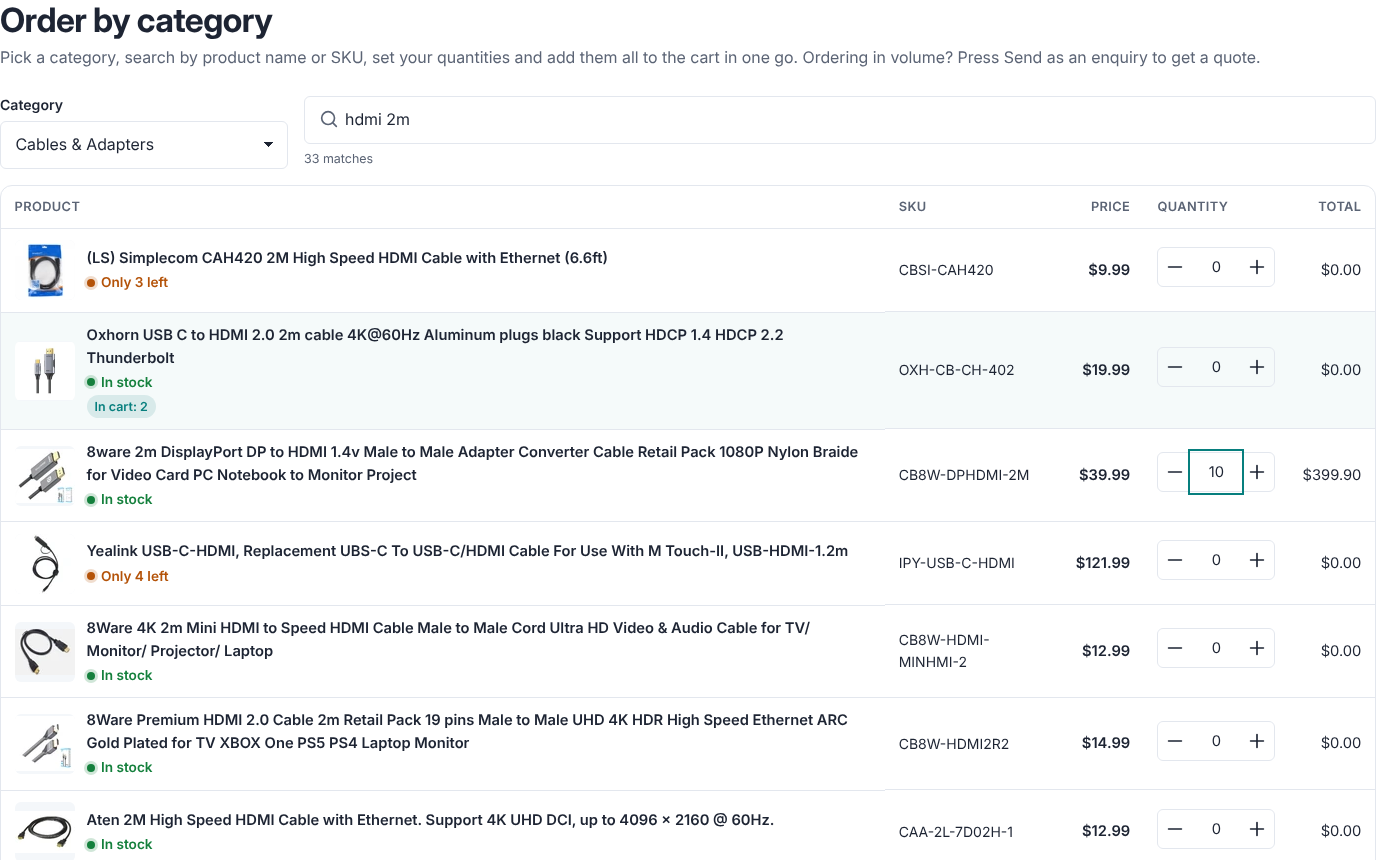
Search the list and pick a category (from 1.3.0, Full)
Two switches in the Quick order list section help shoppers find products in long lists. Both are off by default and need a Full licence.
- Search box and in-cart status. A search box above the list filters it as the shopper types, by product name, variant, SKU or vendor. It searches every page of the list, not just the one on screen (up to 60 pages), and the quantities already typed stay. Products already in the cart show In cart with the quantity, so shoppers don't add them twice.
- Category picker. A Category dropdown lists the collections linked in a menu, so shoppers can switch the list to another category; the search then works inside it. Choose the menu in Category picker menu, or leave it blank to use your main menu (up to three levels). The collection chosen in the section is preselected. A picked category shows its first page with a Show more button, and rows that already have a quantity stay in the list.
Tip: if your page already has a "Quick order" title, give the list its own heading, for example "Order by category".
Trade (B2B) buyers (from 1.7.0, Full licence)
If you sell wholesale with Shopify B2B (companies, company locations and catalogs), Tradeline shows trade buyers what they are buying under. No setting is needed; each part appears only when the data exists:
- Buyer bar: a signed-in trade buyer sees Buying for their company and location above the header. If the company has more than one location, Change location lists the others, and choosing one switches prices and catalogs to that location.
- Payment terms in the cart: add a single-line text metafield
custom.payment_termsto company locations (Settings › Custom data › Company locations) and fill it in, for example Net 30. The cart page and cart drawer show it. Shopify doesn't give themes the payment terms directly, so the metafield carries them. - Store credit: a location's store credit balance shows in the cart when it is above zero.
- Prices: catalog prices, quantity rules and volume price breaks come from Shopify for the buyer's location everywhere a price shows: product cards, quick view, the product page, the quick order list and the cart.
Trade sign-in prompt (Theme settings › Store mode › Trade sign-in prompt, off by default): guests see a Trade account? Sign in for your prices. link under the product price and above quick order lists. Change the wording in Prompt text.
On the demo stores