Veloso
Search, compare, wishlist and navigation
Search suggestions, category menu, compare, wishlist and recently viewed.
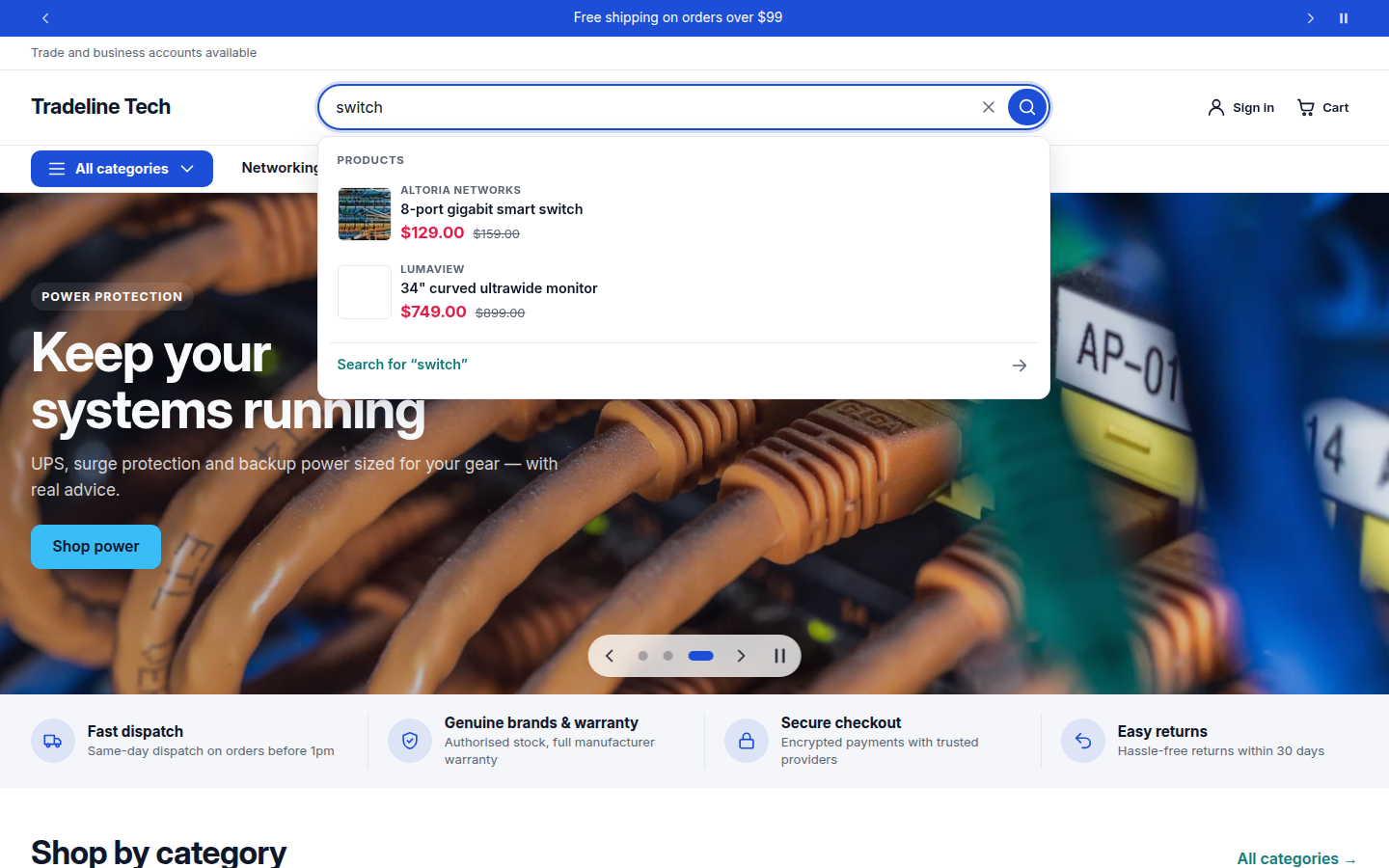
- Search suggestions: products, collections and pages appear as customers type.
- Category menu: an optional All categories button in the header opens a category menu, with optional category icons. On mobile the main menu opens in a drawer.
- Header layout (from 1.2.0; the Header section › Layout): Two rows (the default: logo, search bar and icons on top, menu below) or One row (logo, menu and icons on one line; the search bar becomes an icon that opens a search box). Stores that don't change it look exactly as before.
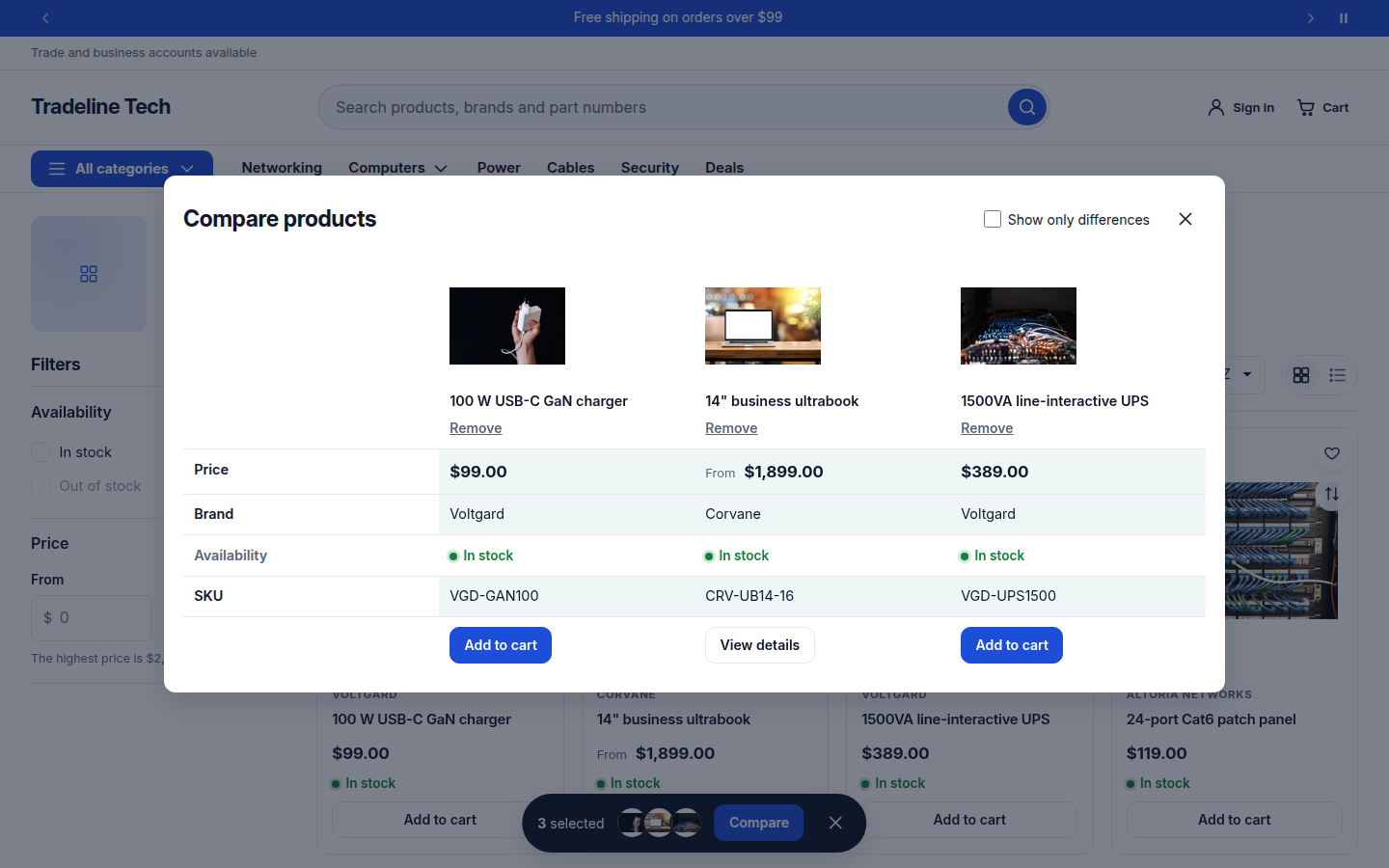
- Product compare: customers compare 2 to 4 products side by side, using your specification metafields.
- Wishlist: saved in the customer's browser, no account needed. Add a page with the wishlist template to show it.
- Recently viewed: a section that shows the products a customer looked at.
All of these are switched on or off in Theme settings › Shopping tools.
More shopping features (all off by default)
- Back-to-top button (Theme settings › Layout and style): appears after about two screens of scrolling, bottom right or left. It respects visitors who prefer reduced motion.
- Option values on product cards (Theme settings › Product cards and badges › Option values on cards): up to six colour swatches or text pills of one option, for example Color. Picking one switches the card's image, price and link. Uses Shopify swatches when you have set them up.
- Pre-orders (Theme settings › Shopping tools › Show pre-orders): for variants that track stock with "Continue selling when out of stock", or products with a
preordermetafield. The button reads Pre-order, an optionalpreorder_shipsdate shows as a ship-date note, and a "Pre-order" line property is recorded on the order. - Infinite scroll (collection or search section › Pagination): loads up to four more pages as the shopper scrolls, then shows a Load more button so the footer stays reachable.
- Quick order list (add the Quick order list section to a page or product template): a table of a product's variants or a whole collection with quantity boxes, quantity rules, volume price breaks and a running total, added to the cart in one go. Good for trade and repeat buyers. With a Bulk order enquiry section on the same page it can also send the list as a quote request.
Specification labels, units and number filters (from 1.6.0, Full licence)
Four settings in Theme settings › Shopping tools, all off or empty by default:
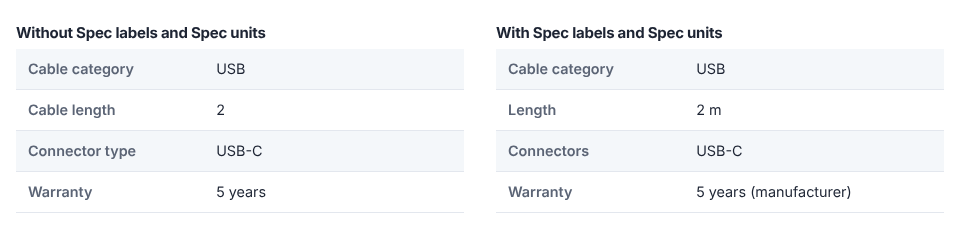
- Spec labels: one line per specification,
key: label, for examplecable_length: Length. The label replaces the name made from the metafield key in the specifications table and product compare. - Spec units: one line per specification,
key: unit, for examplecable_length: m. The unit follows the value in the specifications table, product compare, filter values and the active filter pills. A key can include its namespace, for examplespecs.cable_length: m. - Sort number filters by value: number filters list 0.5, 1, 2, 10 instead of 1, 10, 2, 0.5.
- From and to boxes on number filters: From and To boxes above a number filter. Apply ticks every value inside the range, so results come from Shopify's own filtering and the link can be shared. Without JavaScript the plain list shows.
Store setup the theme can't do for you: create the metafield definitions (we recommend the specs namespace, predefined choices for text specifications and decimal numbers with the unit in the name for numbers; a Measurement type can't be used as a filter), then add the filters in the Shopify Search & Discovery app. Shopify filters number metafields by exact values only, which is why the range boxes tick values rather than sending a range.
Combined listings (Shopify Plus)
Products grouped with Shopify's Combined Listings app work automatically: picking an option value that belongs to a sibling product loads that product in place, and option values on cards link to it. No setting is needed.
On the demo stores