Veloso
Product page blocks
Specifications, downloads, size guides, protection plans and more.
The product page is made of blocks you can add, remove and reorder. Highlights:
- Specifications: shows text, number and yes/no metafields from one namespace (set in Theme settings › Shopping tools) as a table. The same values power product compare.
- Downloads and manuals: links to PDFs and files.
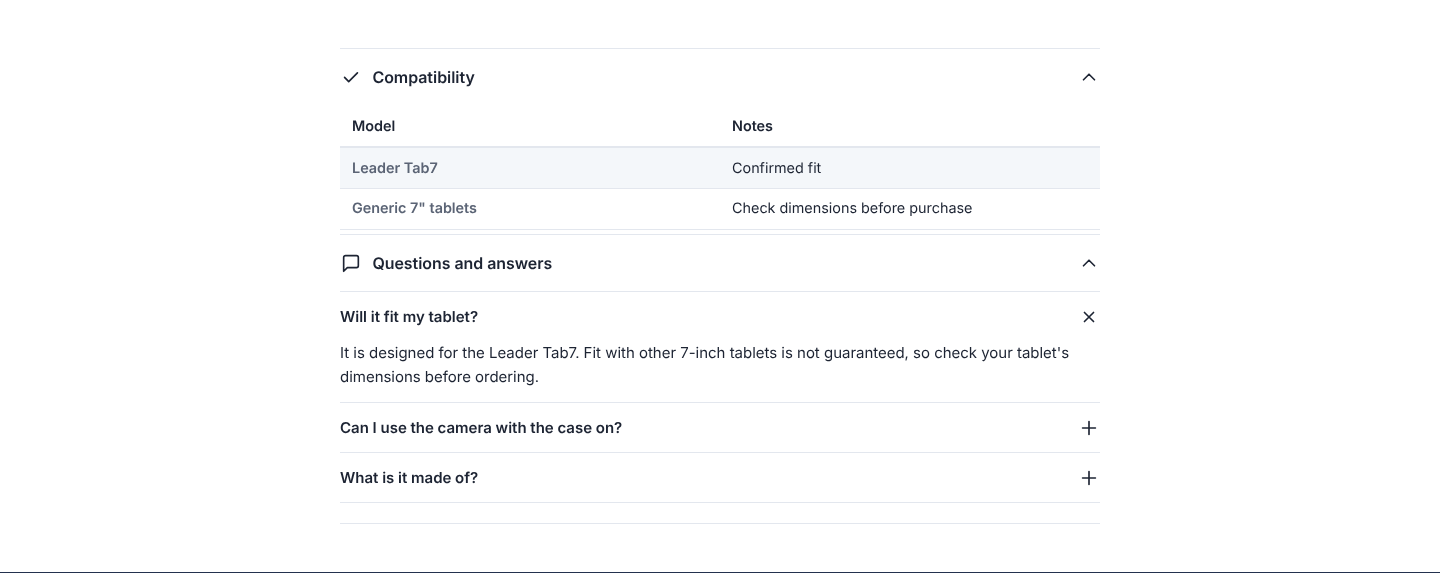
- Compatibility table (from 1.4.0, Full licence): answers "will it fit my model?" from a product metafield, by default
custom.compatible_models. Use a list of single-line text entries, or multi-line text with one entry per line; split columns with|, for exampleLeader Tab7 | Confirmed fit, and name the columns in Column headings (default Model, Notes). A list of metaobjects works too: put the field keys to show in Metaobject fields (defaultmodel, notes). Products without entries show nothing. - Product FAQ (from 1.4.0, Full licence): questions and answers from a product metafield, by default
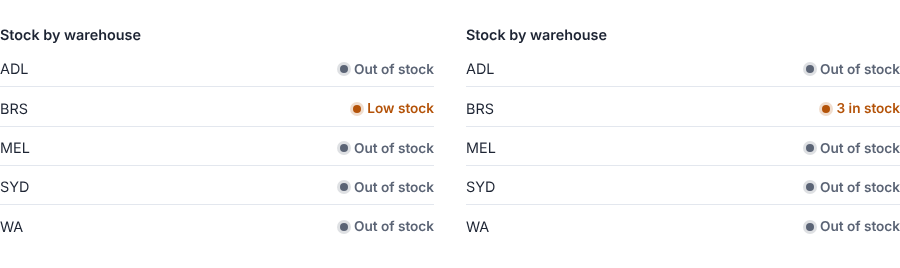
custom.faqs: a list of metaobjects withquestionandanswerfields (the answer can be rich text), or JSON such as[{"question": "…", "answer": "…"}]. Each question opens on its own. Add FAQ structured data (on by default) adds FAQPage data for search engines. Products without questions show nothing. - Stock by warehouse (from 1.5.0, Full licence): stock at each of your warehouses for the selected variant, updated when the shopper picks another option. Only Shopify locations can appear, and you choose which: in Settings › Locations, open a location and switch on Show stock on storefront (the metafield
custom.show_stock_on_storefront); Storefront name (custom.storefront_name) replaces the location name shoppers see. Your stock sync writes the numbers to the variant metafieldcustom.stock_by_locationas JSON, for example[{"location": "Brisbane", "available": 12}], with the shown locations only. Block settings: Show In stock, low or out (default) or exact numbers, Low stock at or below (default 5) and Hide warehouses with no stock (off). Variants without the metafield show nothing. Without a stock sync of your own, you can fill the metafield with Shopify Flow, a metafields app or a product CSV import. - Quantity calculator: for products sold by area or length, for example tiles or paint.
- Protection plan add-on and Bought together: add-on products added to the cart with the main item.
- Size guide: opens a drawer from a product metafield, a page or a table. It only appears on products with the option you name (default Size).
- Back in stock alert: lets customers ask to be told when a sold-out variant returns.
- Booking date and time: see Bookings and services.
- Gift with purchase, Price promise, Trust and payments, Pickup availability, Stock status and Delivery estimate.
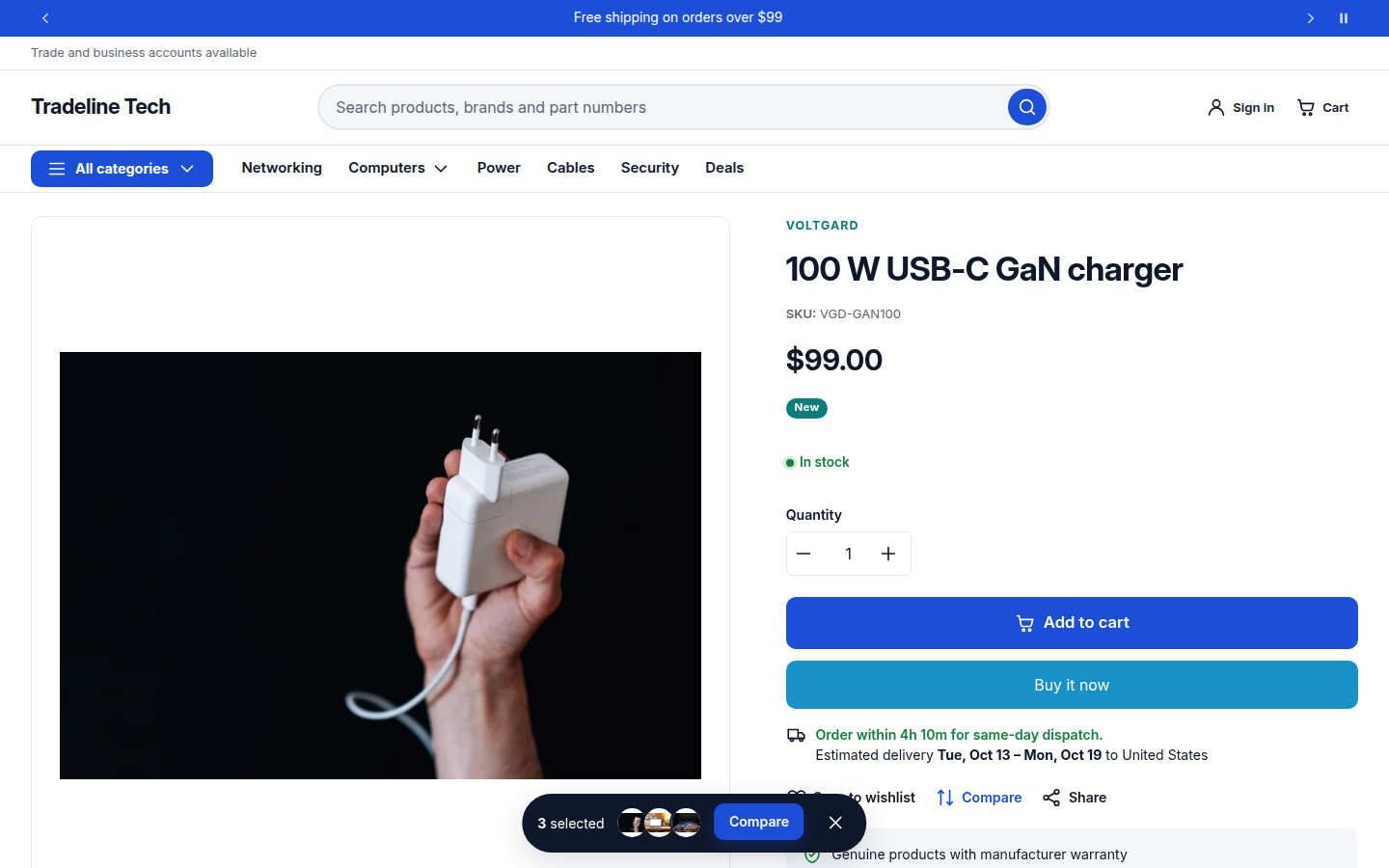
Turn on the sticky add-to-cart bar in Theme settings › Shopping tools to keep the buy button in view on long pages.
Tabs or accordions
In the product section, Description, specifications and other rows can show as Accordions (default) or Tabs. With tabs, two or more neighbouring rows (description, specifications, collapsible rows) become one tab set; tabs wrap onto a new line when they don't fit and work with the arrow, Home and End keys. Without JavaScript the rows stay accordions.
Gift cards
On gift card products, the Buy buttons block can show a recipient form (on by default): recipient email and name, a message and a send date. Shopify then emails the gift card to the recipient. Dynamic checkout buttons are hidden on gift cards while the form is on, because they would skip it.
On the demo stores